
In this instalment of Easier with BookNet, we’re shining the spotlight on Notes, a feature that has been part of CataList since its early days and still walks hand in hand with bookselling.
As you may already know, CataList is BookNet’s online catalogue service and order management tool. Accounts are free for booksellers and librarians, and you can submit a request for one on the CataList home page.
The Notes feature is primarily used by sales reps to share additional information that they think will be useful for specific clients, but anyone with a CataList account can save notes privately or share them with their team to help organize their ideas and plans for a title.
Today, we’re going to explain how using contact lists and groups can help you share notes more easily. Let’s start you on the path to becoming a pro at sharing notes in CataList!
First – where do you create notes?
You can create notes on a Title Detail page, on a catalogue’s scrolling view, or upload a notes file in My Page. You can also see your notes in grid view.
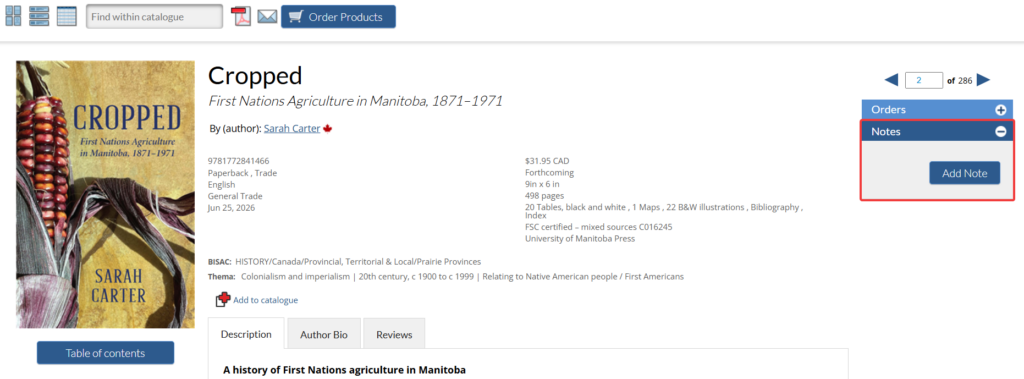
You can create or view notes in the Title Detail page.
Now let’s talk about what you can do with Notes.
Share a note with an individual or contact list
The great thing about notes is that you can share them with others in CataList and the note will appear wherever the person views the title information.
Publishers and sales reps in CataList can share a note with colleagues, individuals who have opted in to the CataList directory, or contact lists. Other CataList accounts such as booksellers and librarians can share a note with colleagues or contact lists.
Tip: If you’re a sales rep but can’t find a client’s name in the directory, ask them to opt in to the CataList directory.
A contact list is used to share a custom catalogue or note with a set of individuals rather than tagging each person individually. They’re particularly useful to sales rep sharing information with specific types of book buyers, like independent bookstores or library selectors.
To get started, create a contact list with that segment of your client base, then add that contact list to your notes. Everyone who is in that contact list will have access to all of the notes that are shared with the list.
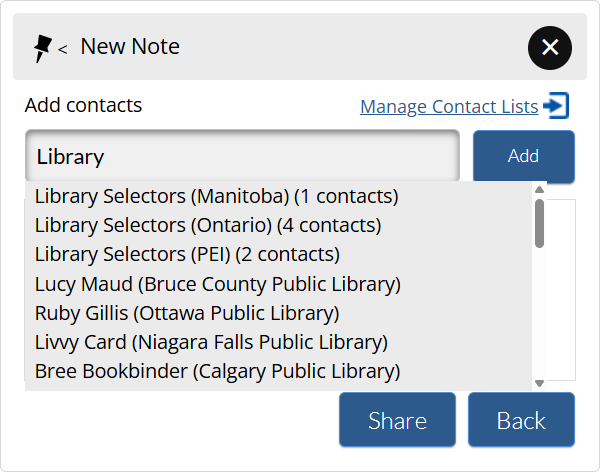
Use the search box to find individuals or contact lists.
Update contact lists to update note recipients
If you’re working with new book buyers that fit into an existing subset of clients, there’s no need to worry about re-sharing old notes with them, since you can add them to the existing contact list that has similar buyers. The new buyer will then have access to all of the previous notes that were shared with that contact list.
Contact lists are highly customizable and can be different for each sales rep, but over the years we’ve heard that there are particular types of contact lists that sales reps across different companies create and maintain.
For example, a marketing or sales operations team may create a contact list that includes just people in their own company, or a sales rep may create a contact list that includes Fiction or Juvenile buyers from different stores. These contact lists make it very easy to share notes with people according to the type of books that are important for their job, and they can easily be updated whenever there is a change in staff.
We wanted to make that update process even easier for the most common cases. To that end, we created groups for the Notes feature.
Share a note with a group
Groups are a new type of distribution list that you can add to a note. They are automatically created and maintained in the CataList system. When you share a note with a group, everyone who’s in that group will see the note, and anyone who’s added to the group in the future will see all of the previous notes that you shared with the group.
The CataList team spoke with various sales reps and book buyers to determine what kind of groups would be helpful. There are five groups that are currently available in CataList:
- My Company: Use this group to share a note with everyone in your CataList account.
- All Libraries : Use this group to share a note with all librarians who have a CataList account.
- All Retailers: Use this group to share a note with all retailers (including Indigo and CIBA accounts) who have a CataList account.
- CIBA Members: Use this group to share a note with all members of the Canadian Independent Booksellers’ Association (CIBA) who have a CataList account.
- Indigo Category Managers: Use this group to share a note with all authorized buyers in Indigo’s CataList account.
Publishers and sales reps who subscribe to CataList have access to all five groups. Other account types only have access to the My Company group.
When you want to share a note, the groups that are available for your account type will appear at the top of the CataList directory in bold.
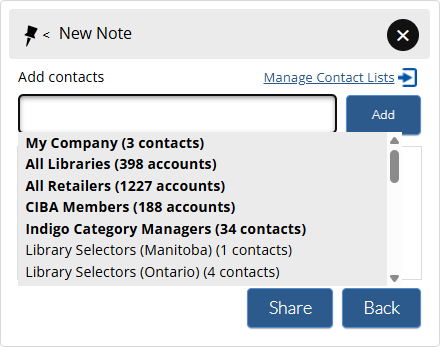
Groups appear at the top of the notes-sharing CataList directory.
Select a group as you would an individual or a contact list: choose the group from the directory, click Add, and then repeat the process until you’re ready to share the note. Click Share to share the note.
Should I share my note with a group or contact list?
It depends on who should have access to your note. Here are some questions to consider:
- Are you currently using a contact list for a specific list of clients, and are the notes that you share highly specific to these individuals?
- Yes: You will likely want to keep using your contact list instead of a group.
- No: You can consider sharing your note with the All Libraries or All Retailers group (or both!) if you want the information to be shared more widely.
- Are you using a contact list that includes everyone in your company?
- Yes: You should try the My Company group. When you or the CataList team adds a new staff member to your account, that staff member is automatically added to the My Company group, and you won’t have to update anything else in order to share those notes.
- As a publisher with forthcoming titles that are eligible for The Booksellers’ List, do you have additional information that you want to share with the CIBA members who are considering your titles for the list?
- Yes: You can share a note with these booksellers by using the CIBA Members group.
- Are you a publisher or sales rep selling books to Indigo and have proprietary information that you wish to share with one or more category managers?
- Yes: You can use the Indigo Category Managers group so that all authorized category managers have access to the notes you’re sharing. This way, even if the category manager changes, the new manager will automatically have access to your notes for the titles.
That’s it for now. We’ll share other useful tips on using the Notes feature in future blog posts!
Find more tips and tricks to using BookNet Canada’s products in the Easier with BookNet blog series.